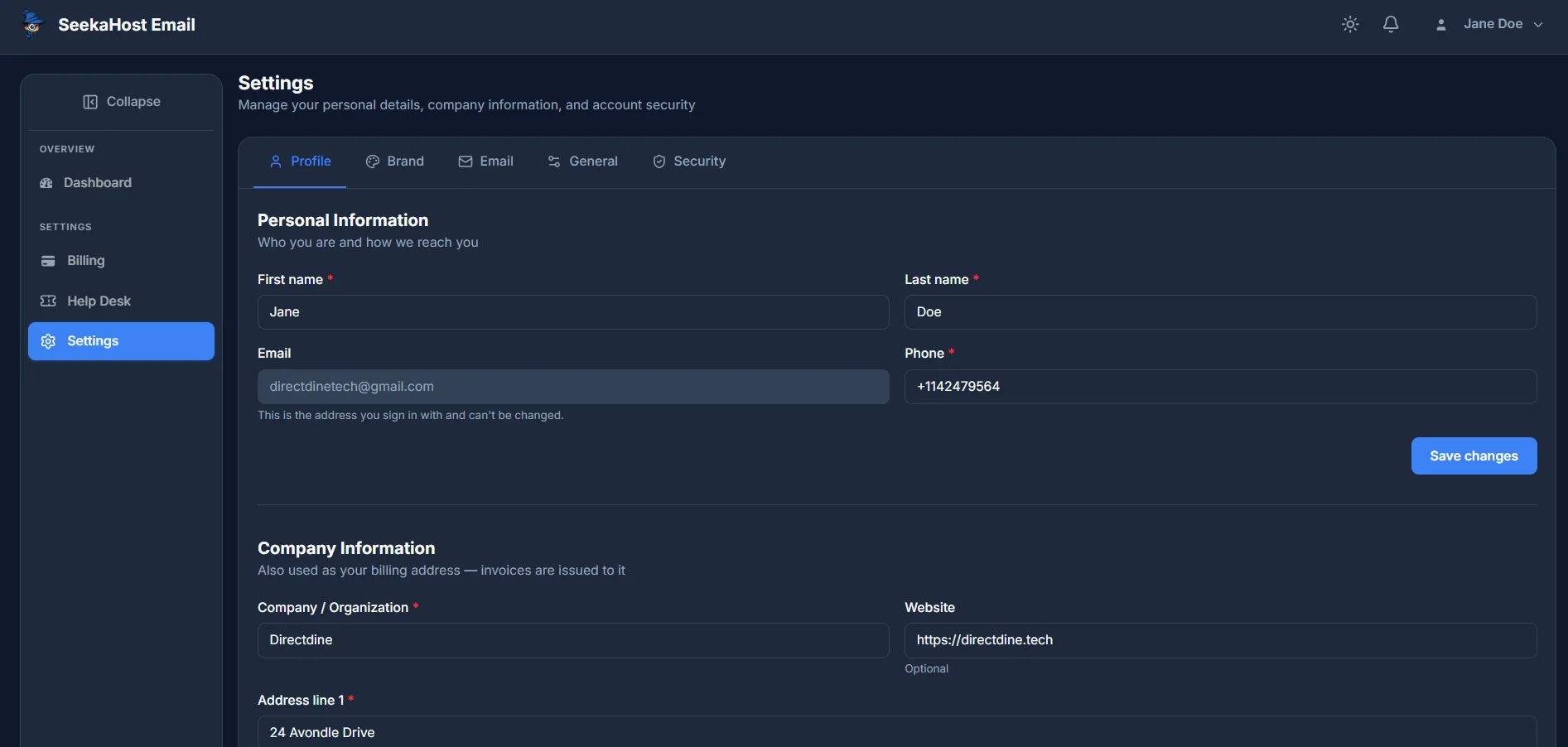
Your personal and company details live under Settings → Profile, split into two sections.
Personal information
First name and Last name can be changed any time. Email is read-only here - it's the address you sign in with, and can't be changed from this screen. Phone is required. Click Save changes once you're done.
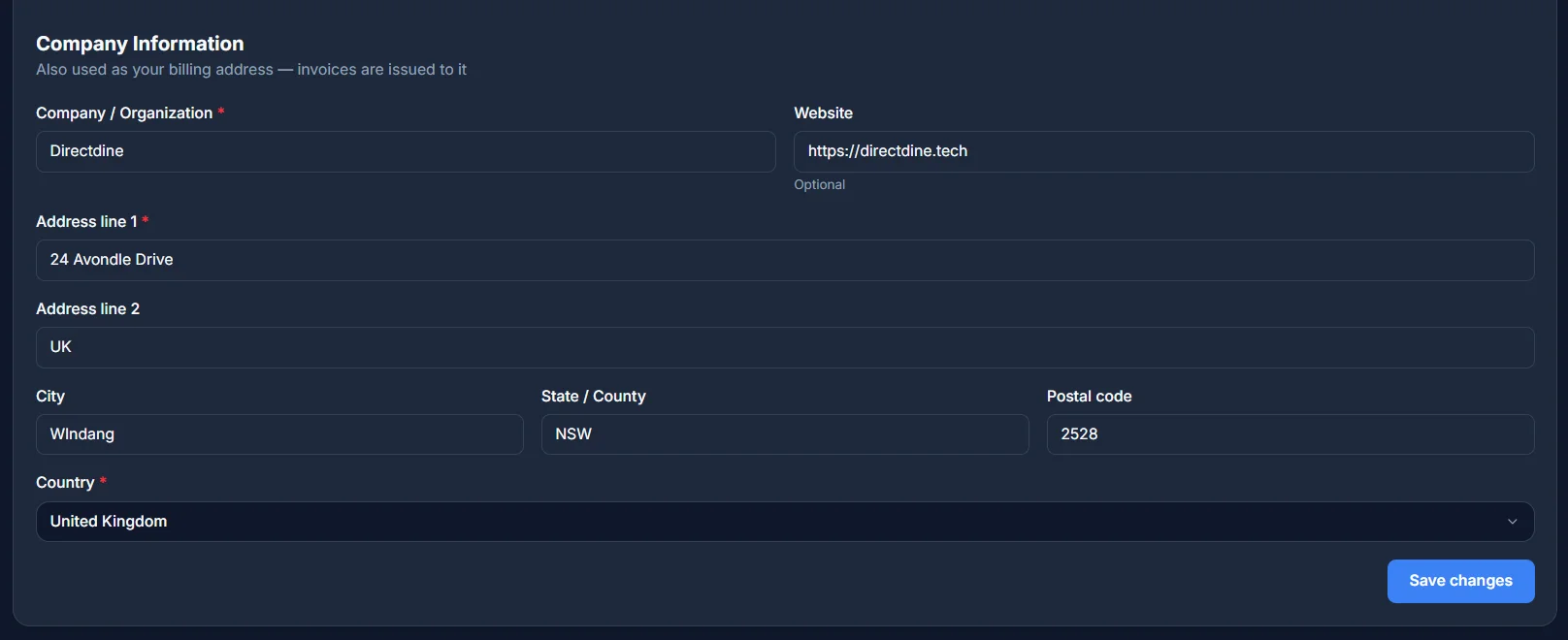
Company information
This doubles as your billing address - it's what your invoices are issued to. Company/Organisation and Address line 1 are required; Website, Address line 2, City, State/County and Postal code are optional, and Country is required.
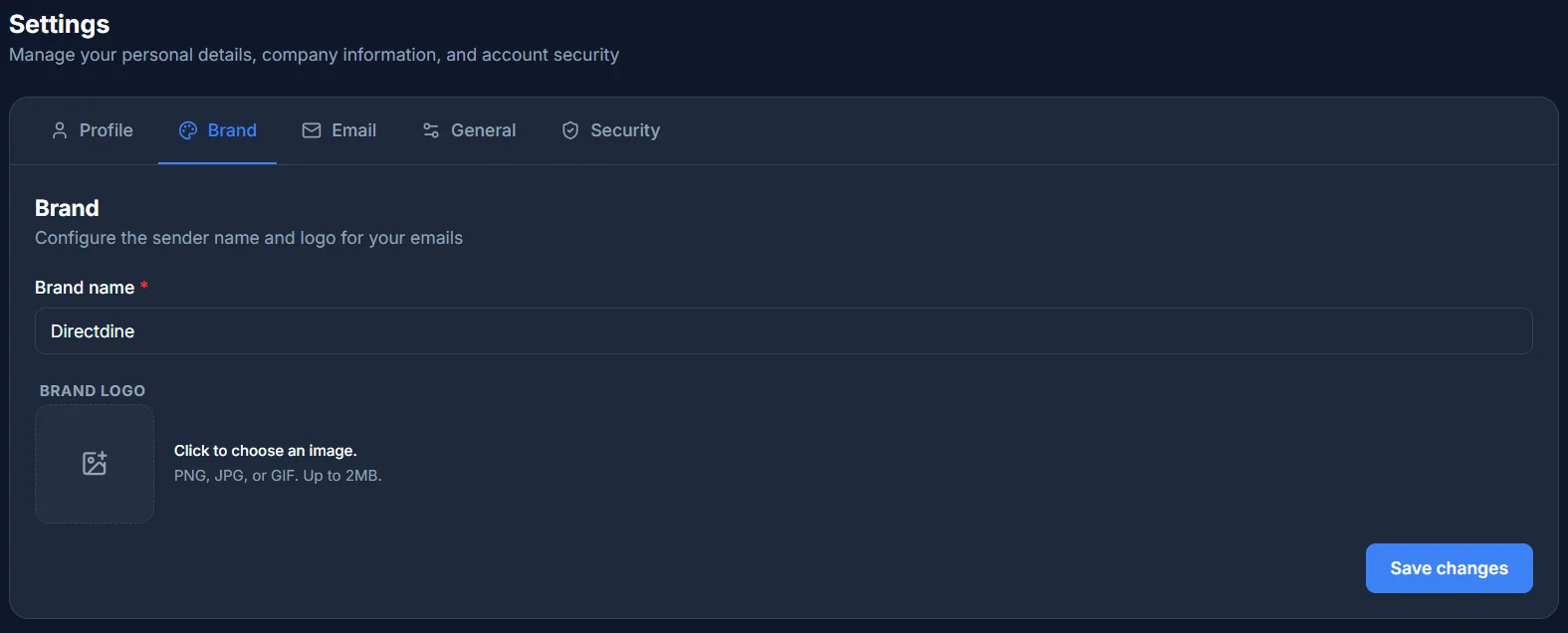
Brand
Settings → Brand is where the Brand name you picked during setup lives, along with the sender name and logo shown on your emails. Brand name is required; the logo is optional - upload a PNG, JPG or GIF up to 2MB, or remove it to go back to no logo. Click Save changes once you're done.