A list is where your subscribers live, and where the rules for how people join and leave are set. Here's how to create one and set it up properly.
Your lists
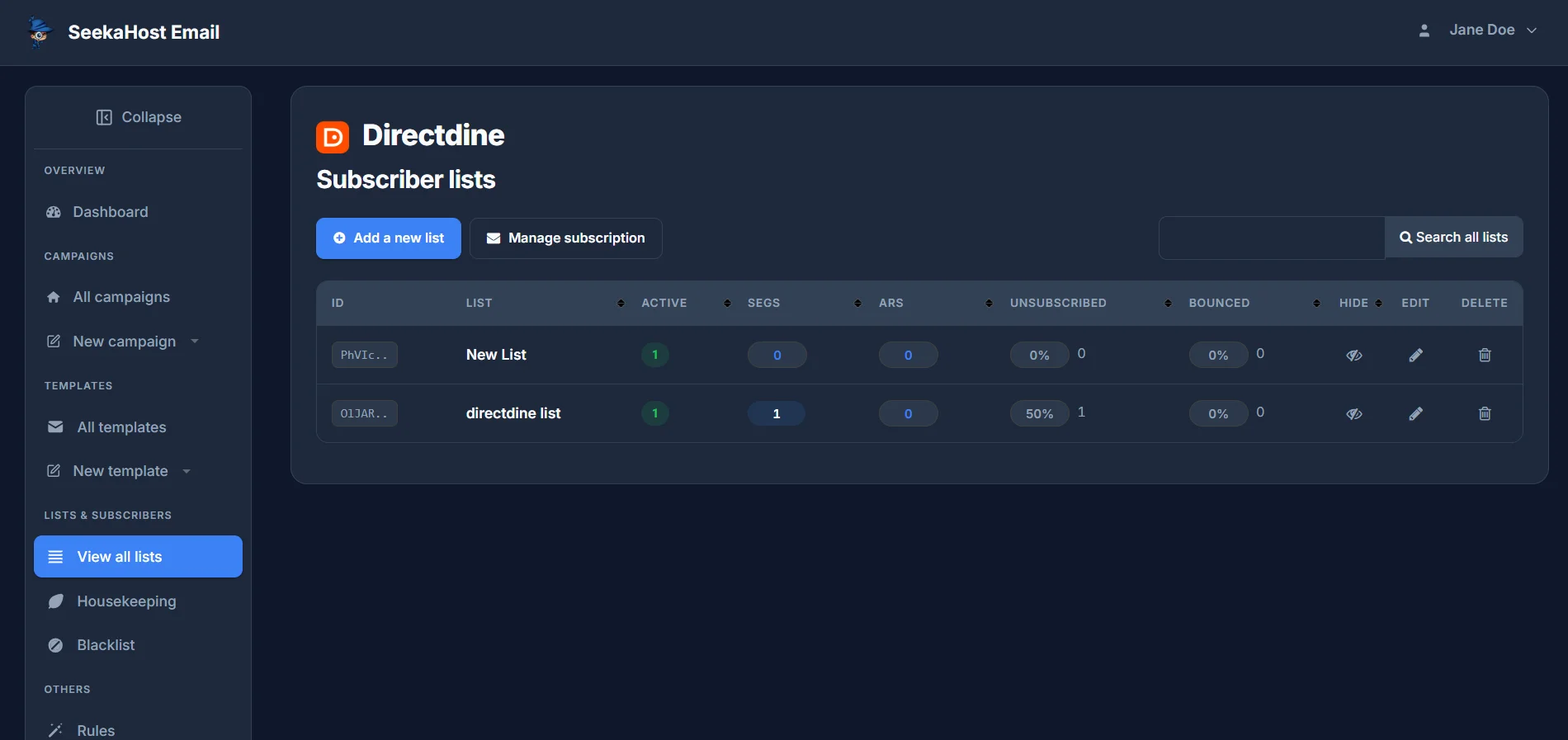
Go to Lists & Subscribers → View all lists. This shows every list you've created, as a table:
- Active - how many subscribers are currently subscribed.
- Segs - how many segments you've saved on this list.
- ARs - how many autoresponders are set up on this list.
- Unsubscribed and Bounced - shown as both a percentage and a count.
- Hide - hides the list from view without deleting it or its subscribers.
- Edit and Delete - rename or permanently remove the list.
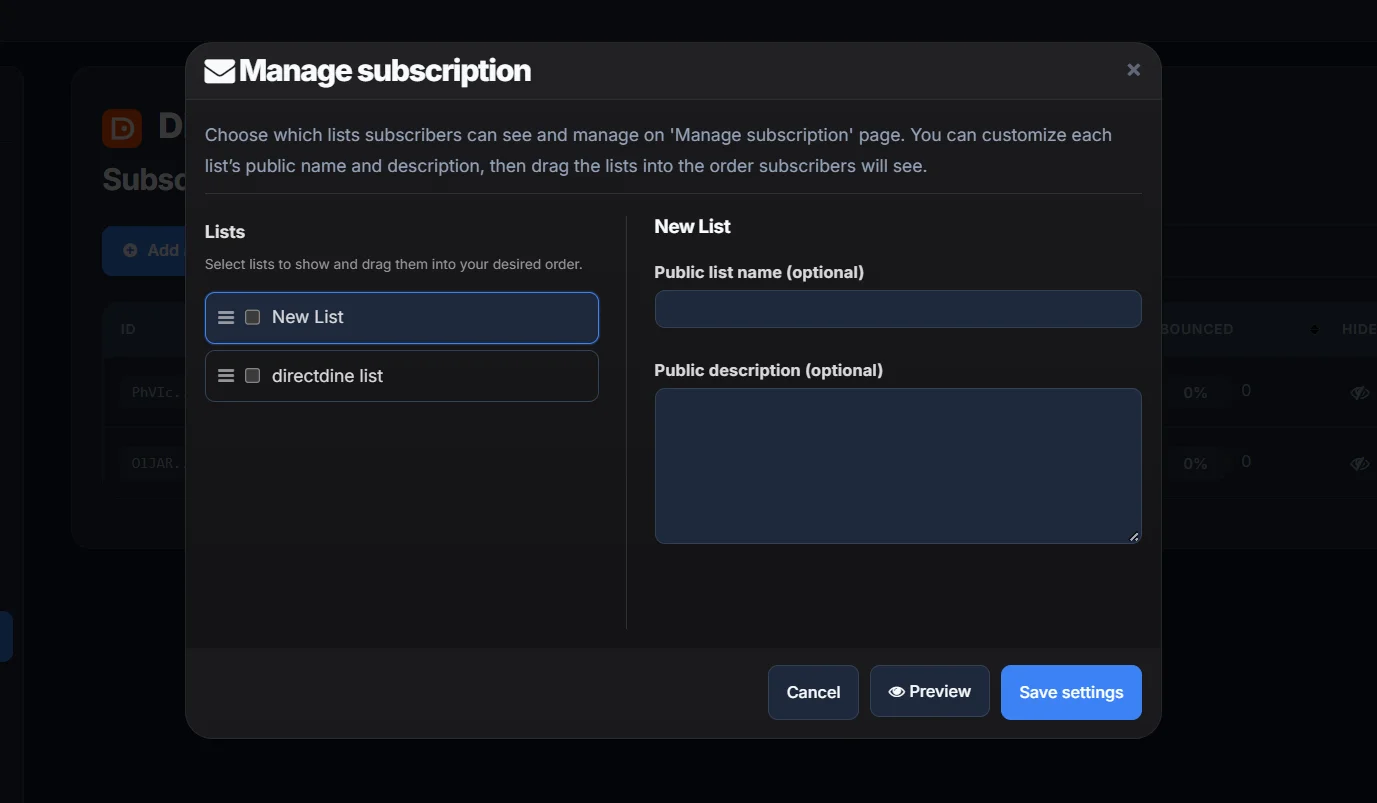
Manage subscription, next to Add a new list, sets up a public preference page where subscribers can see and choose which of your lists they're on. Select which lists appear there and drag them into the order subscribers will see, and optionally give each one a public name and description - useful if a list's internal name isn't something you'd want a subscriber to see. Preview it before saving.
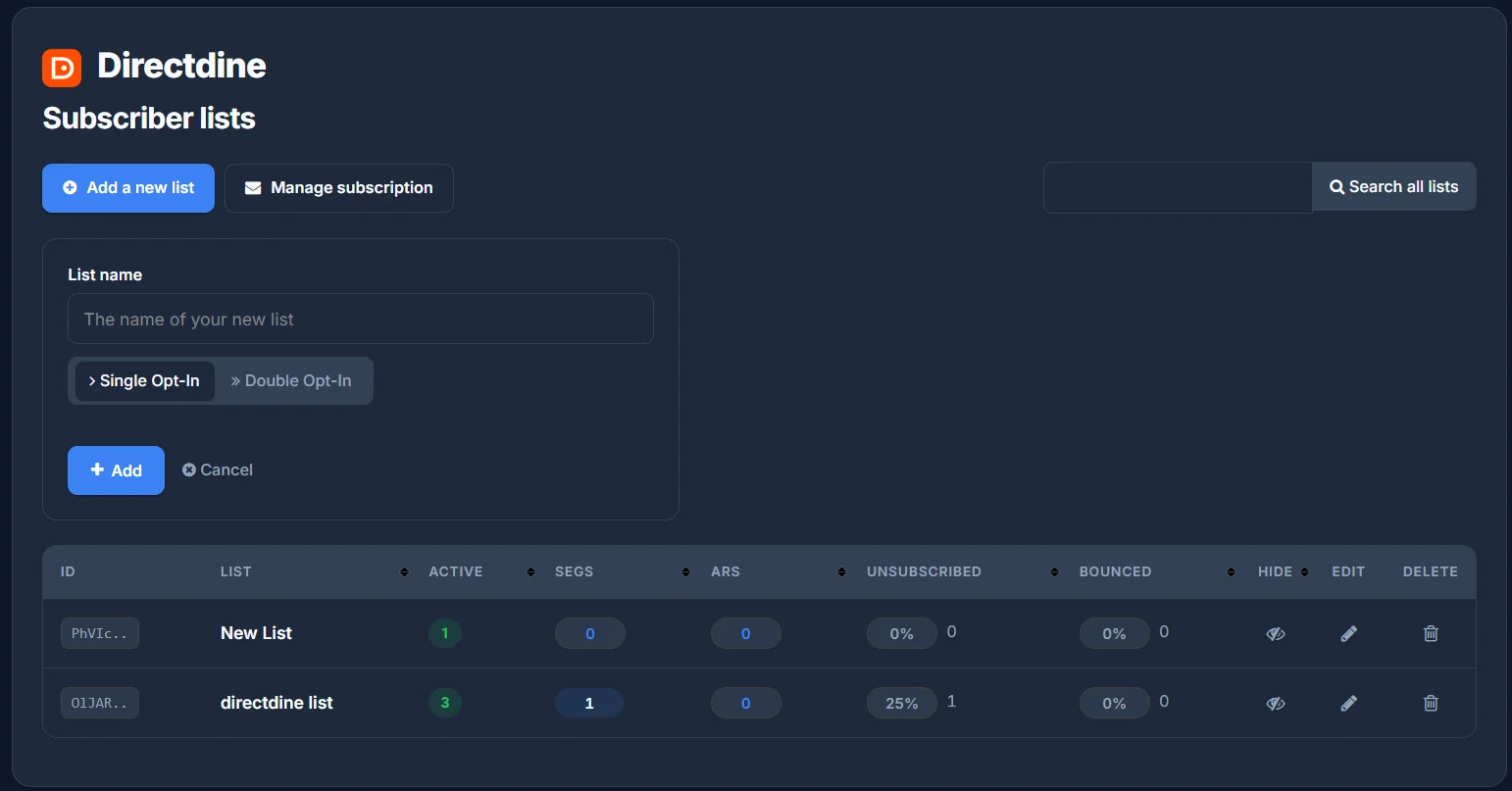
Creating a new list
Click Add a new list. Give it a name, then choose how people join it:
- Single Opt-In - someone's subscribed the moment they sign up.
- Double Opt-In - they also have to click a confirmation link in an email before they're fully subscribed.
List settings
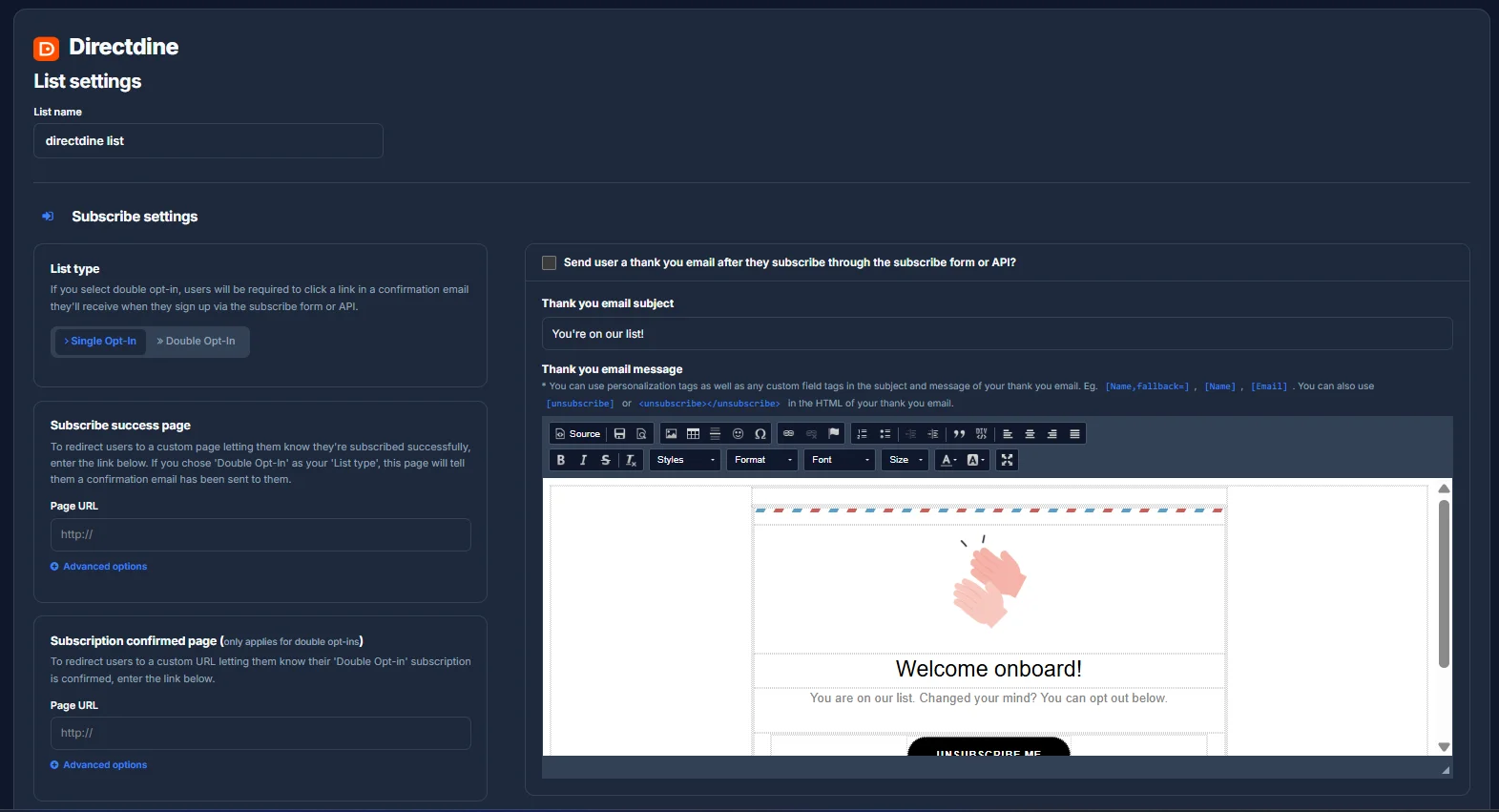
Open a list's List settings to configure what happens at each stage of someone joining or leaving. Subscribe settings cover the join side:
- List type - change between Single and Double Opt-In here too.
- Subscribe success page - a custom URL to redirect to after someone subscribes, instead of the default page.
- Subscription confirmed page - for double opt-ins, where they land after confirming.
- Thank you email - off by default, behind a checkbox. When it's on, it's sent right after someone subscribes through the public subscribe form or the API specifically - not when you add them yourself via import. It has its own subject and message, and supports personalization tags like [Name,fallback=] and [Email].
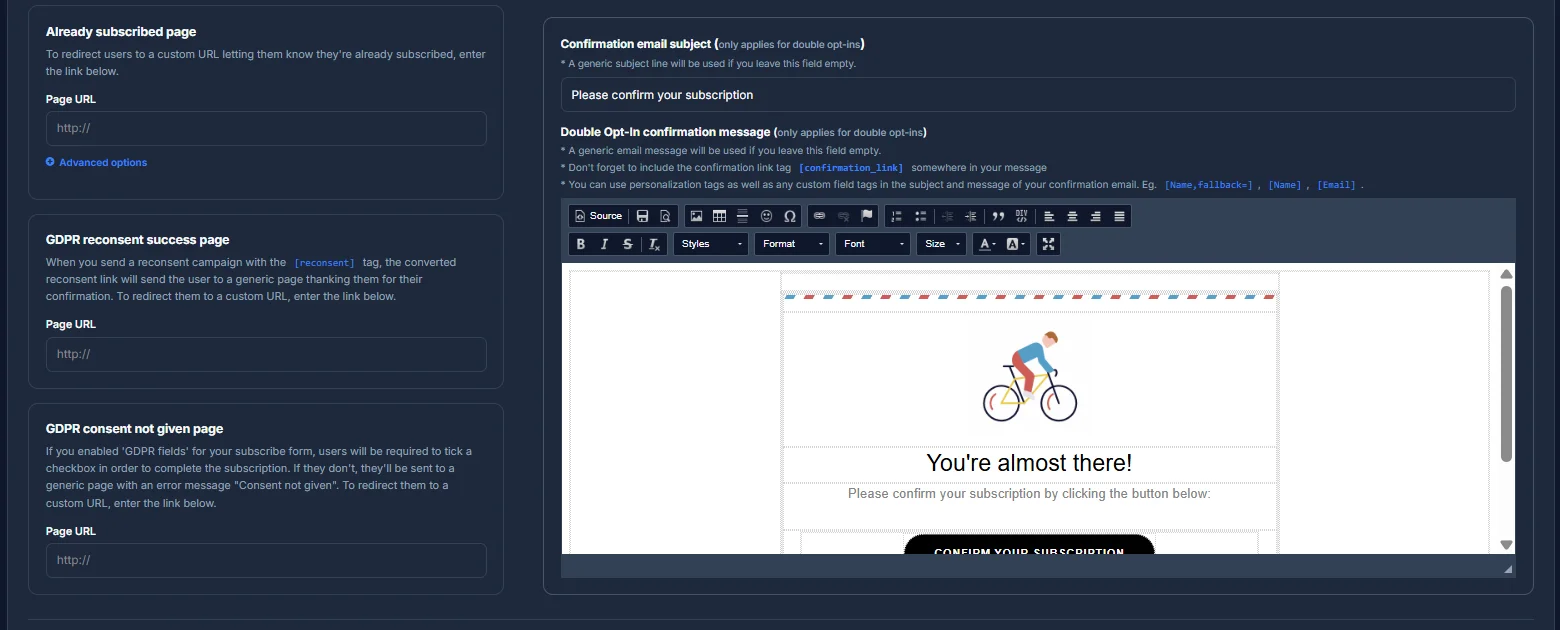
- Already subscribed page - shown if someone tries to subscribe an email that's already on the list.
- GDPR reconsent success page - where a reconsent link sends someone once they've confirmed.
- GDPR consent not given page - shown if someone doesn't tick a required GDPR checkbox.
- Confirmation email - for double opt-ins, the email with the confirmation link itself. Leave the subject or message empty and a generic version is used instead, but if you write your own message, the confirmation won't work unless you include the [confirmation_link] tag somewhere in it.
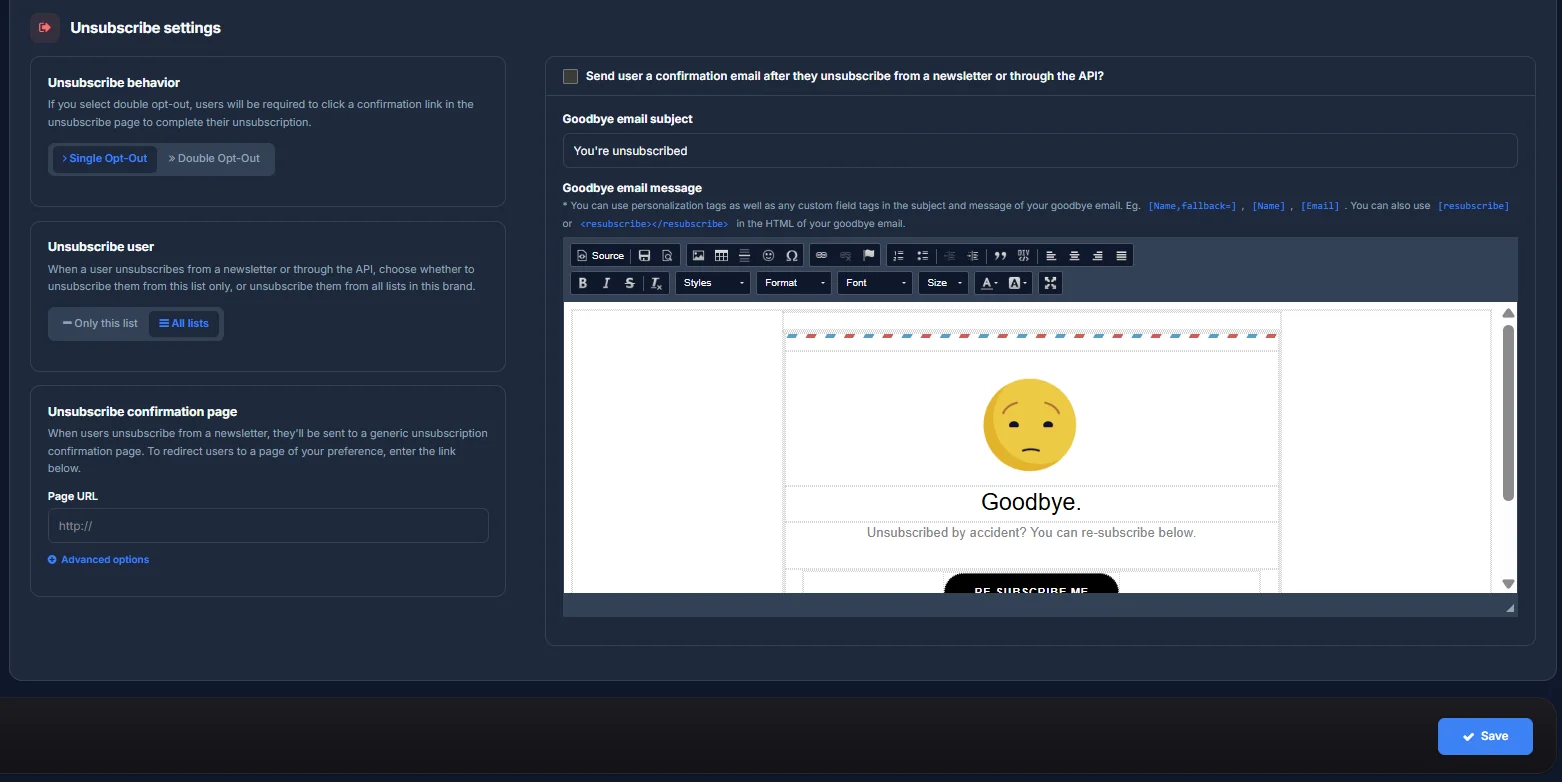
Unsubscribe settings cover the leave side, the same way:
- Unsubscribe behavior - Single or Double Opt-Out, the same idea as opt-in but for leaving.
- Unsubscribe user - when someone unsubscribes, remove them from just this list, or from every list in your account.
- Unsubscribe confirmation page - a custom page shown after someone unsubscribes.
- Goodbye email - also off by default, behind its own checkbox. When it's on, it's sent after someone unsubscribes, with its own subject and message, and can include a [resubscribe] link in case they changed their mind.
Segments
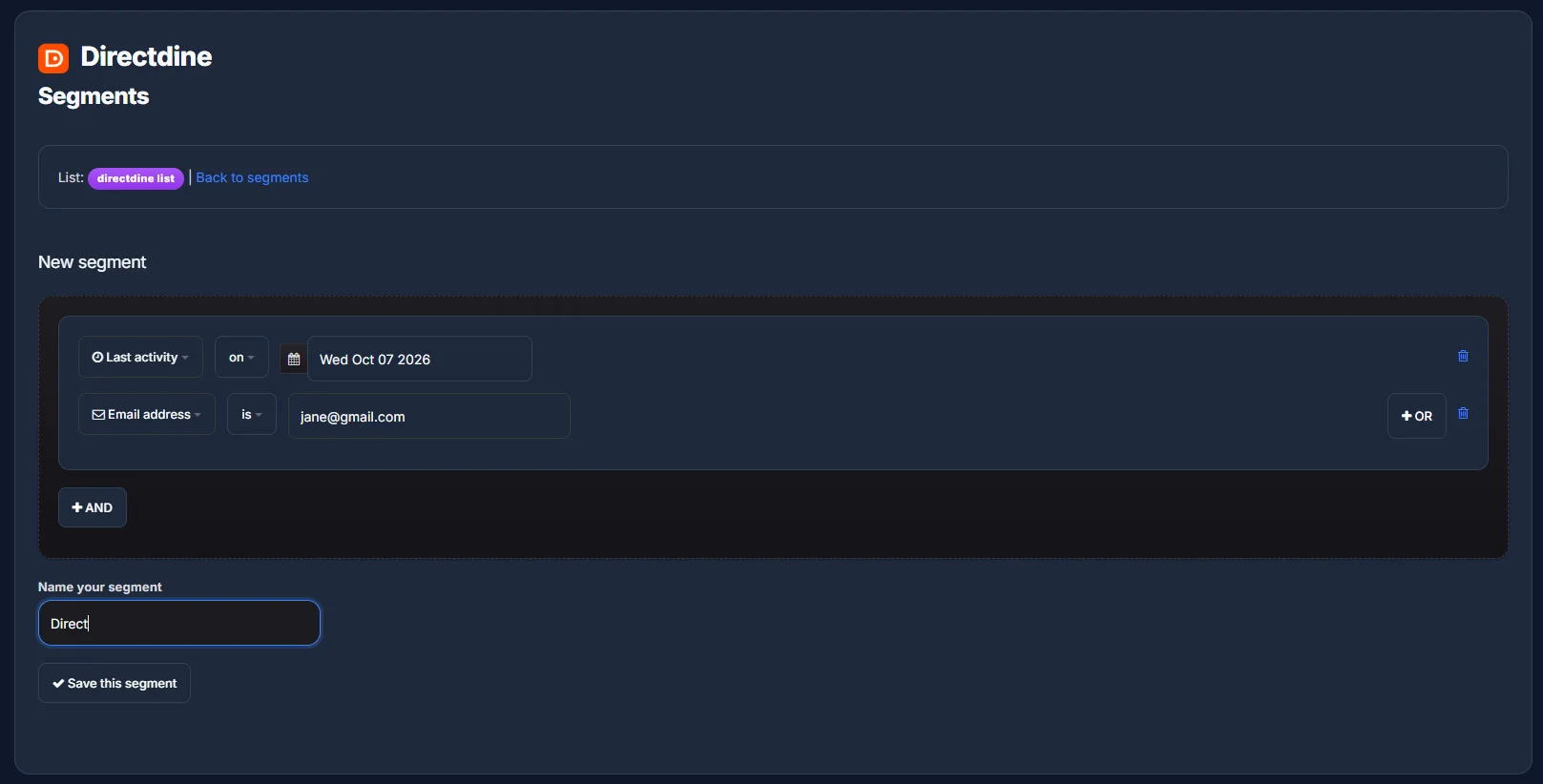
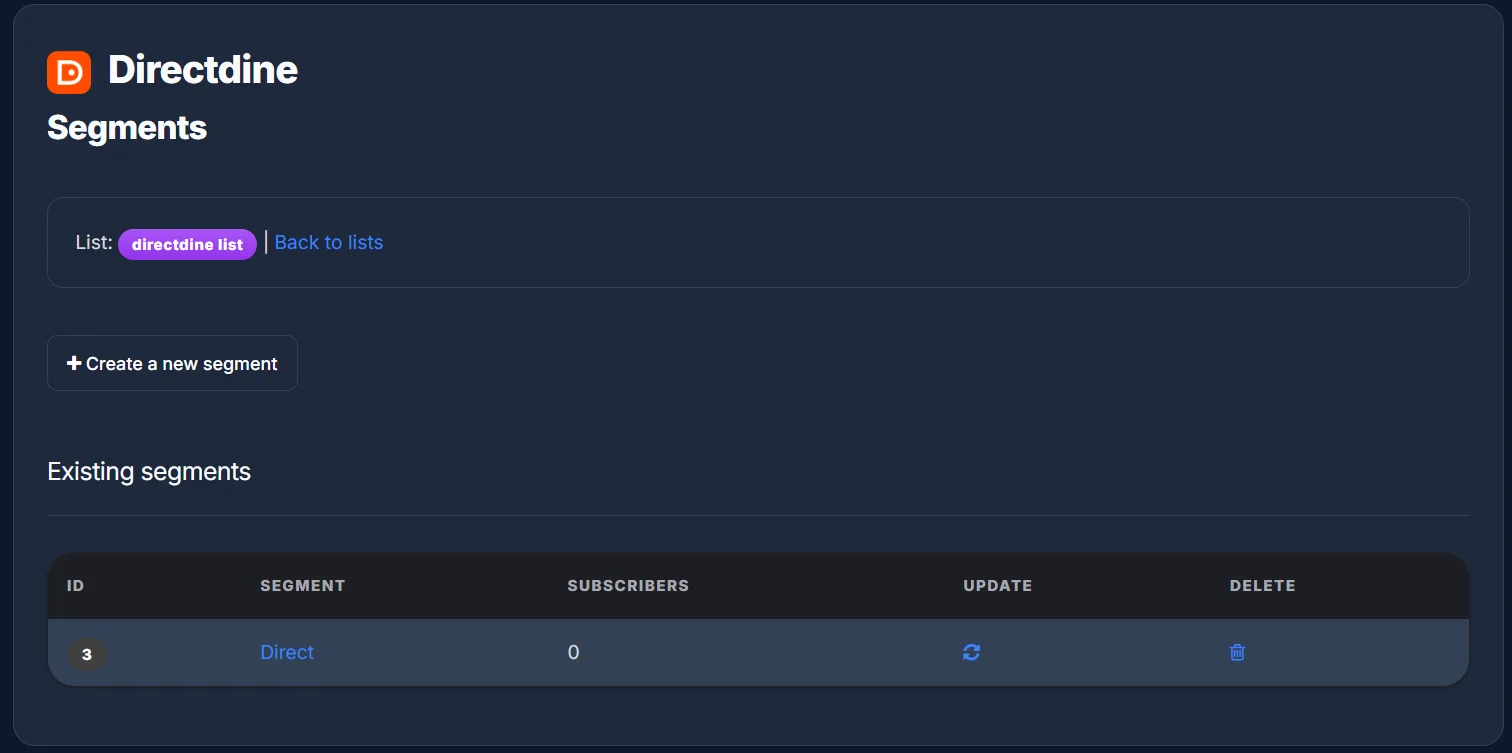
A segment is a saved filter within a list - useful for targeting just part of it when you send a campaign, rather than everyone on the list. Build one from condition rows like last activity on a given date, or email address matching a value, then combine rows with OR (any of these match) or AND (add a whole separate group that must also match). Give it a name and save it.
Every segment you've saved lists its current subscriber count, with Update to recalculate it as your list changes, and Delete to remove the segment.
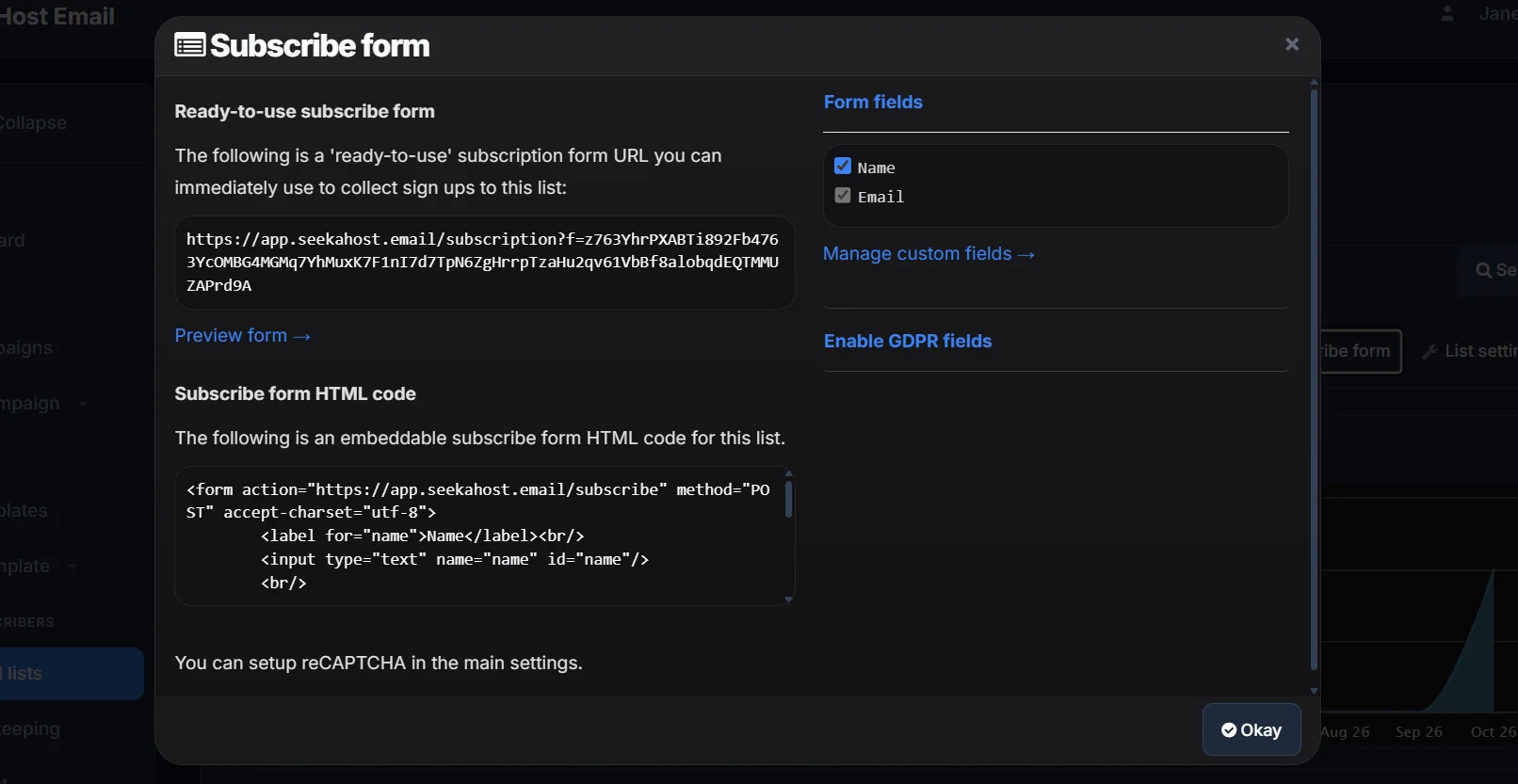
The subscribe form
Every list comes with a ready-to-use subscribe form - a hosted URL you can link to directly and preview before sharing, or an embeddable HTML snippet for your own site that posts straight to it. Email is always collected since it's what a subscription actually is; Name can be switched off if you'd rather not ask for it, and you can add any custom fields you've set up here too. Enable GDPR fields if you need an explicit consent checkbox before someone can subscribe. If spam signups become a problem, reCAPTCHA for this form can be turned on from your main account settings.