
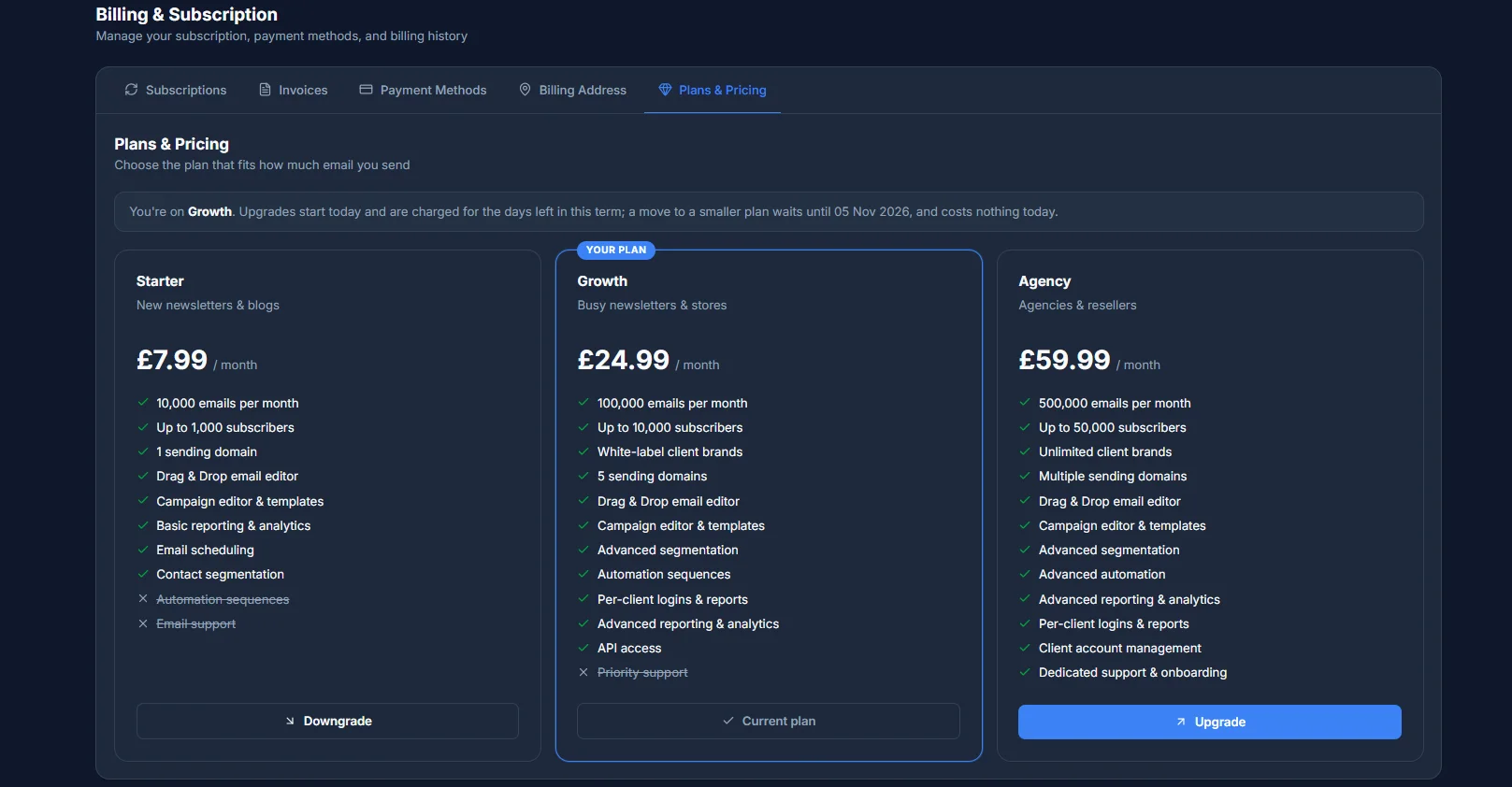
You're not locked into a plan - change to any other plan at any time from Billing → Plans & Pricing. What happens next depends on whether you're moving up or down.
Upgrading
An upgrade starts straight away: upgrades are charged today for the days left in your current term, and your card on file is billed immediately. A preview shows you the exact amount before anything is charged - click Upgrade on the plan you want and confirm.
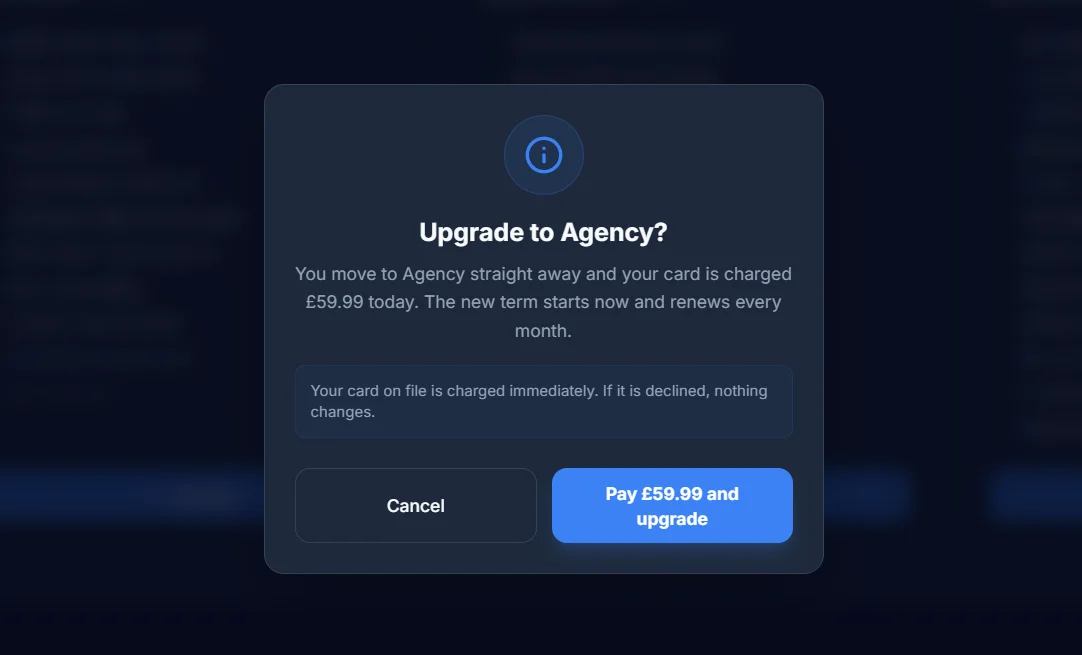
If your card is declined at this step, nothing changes - you stay on your current plan.
Downgrading
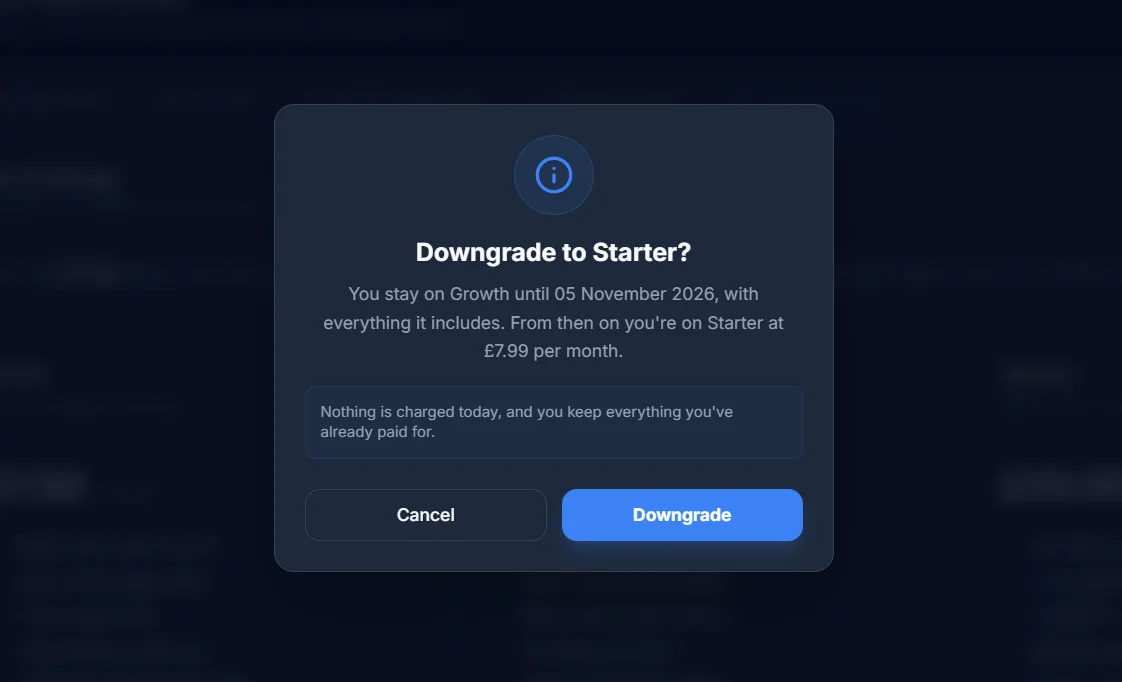
A downgrade is free and takes effect at the end of your current term - nothing is charged or refunded right now, you simply move to the lower plan when your term is up. Click Downgrade on the plan you want and confirm; you keep everything your current plan includes until the date shown, then move to the new plan. If what you're currently using wouldn't fit the lower plan - too many client brands in use, for example - the downgrade is blocked up front, with a message telling you exactly what to fix first.
One change at a time
You're limited to one upgrade and one downgrade per calendar month.